How to Check Your Microsoft Account Subscription Status
A step-by-step guide to signing in to a personal Microsoft account and viewing subscription details.
Step 1: Go to your Microsoft account page
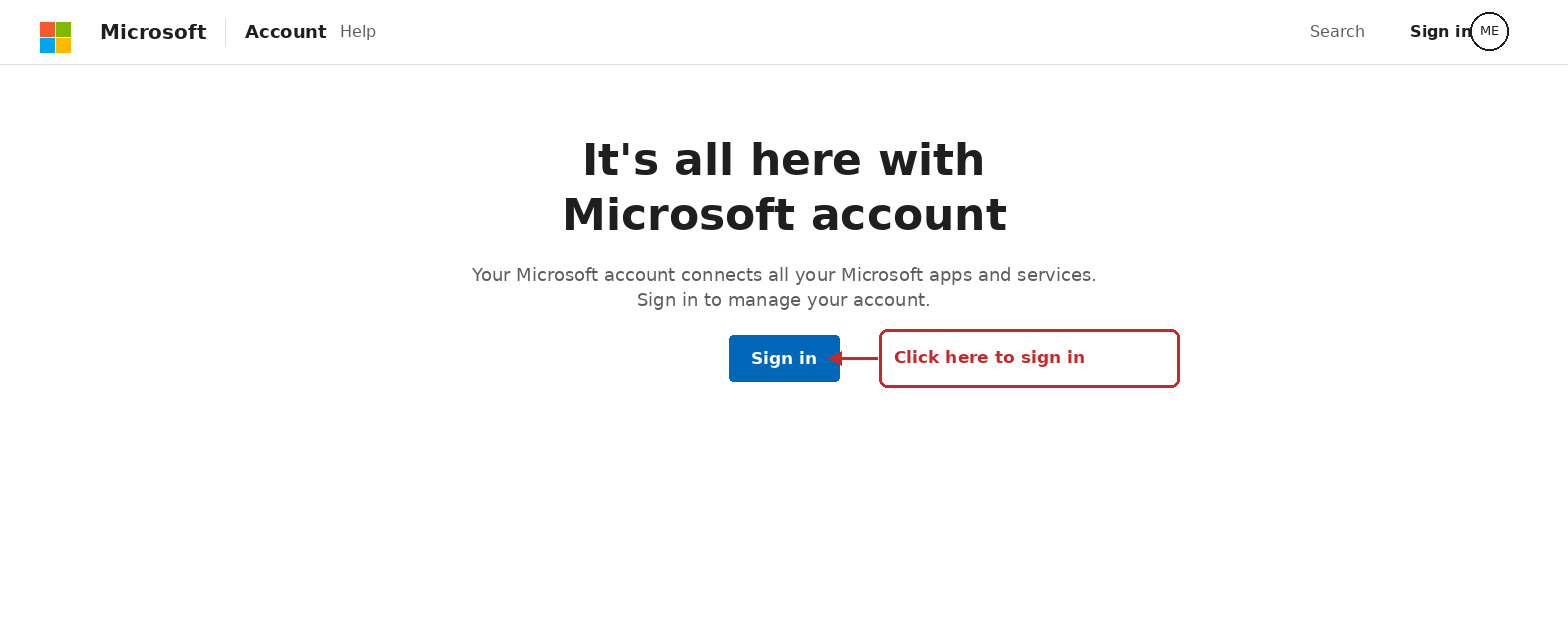
Open a web browser and go to account.microsoft.com. This is the official page for managing any personal Microsoft account. Click the Sign in button in the top-right corner.
Step 2: Sign in
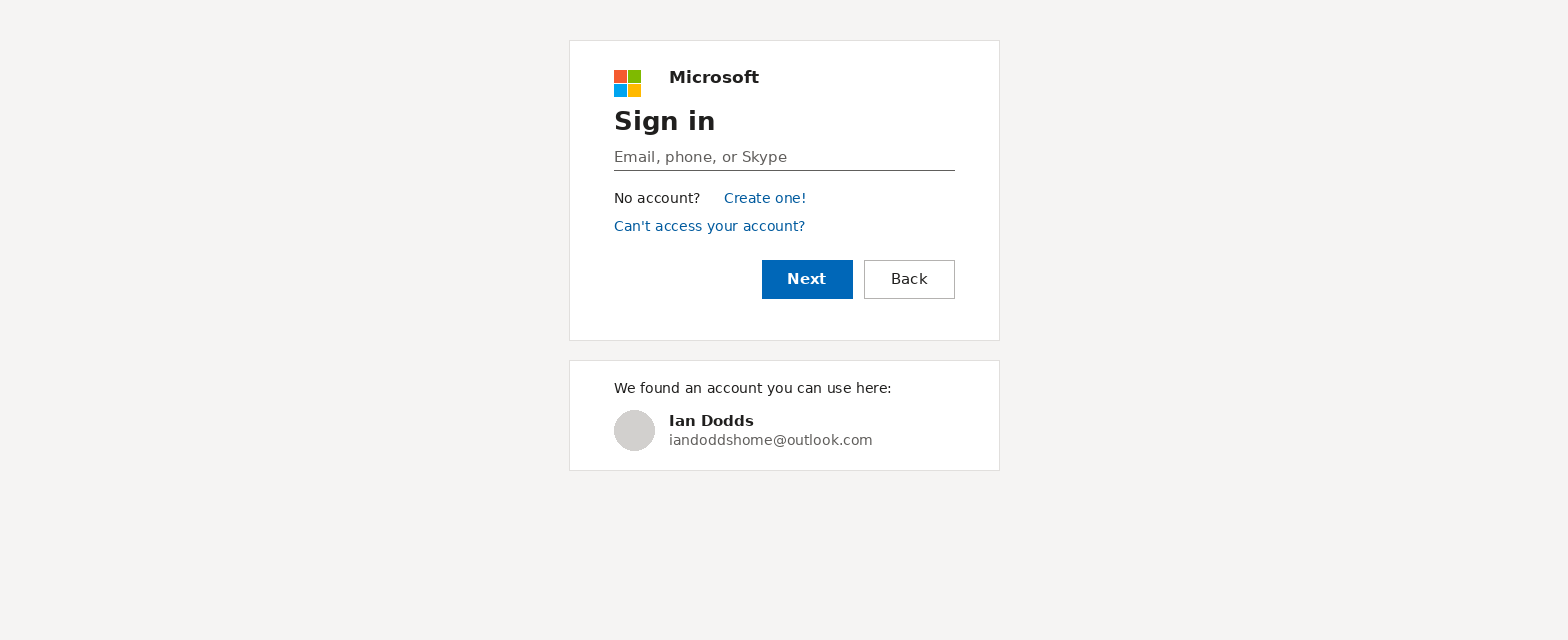
Enter the email address, phone number, or Skype ID linked to the Microsoft account, then click Next and enter the password. If the browser already remembers the account, it may appear as a one-click option, as shown below.
Step 3: Open the Account home page
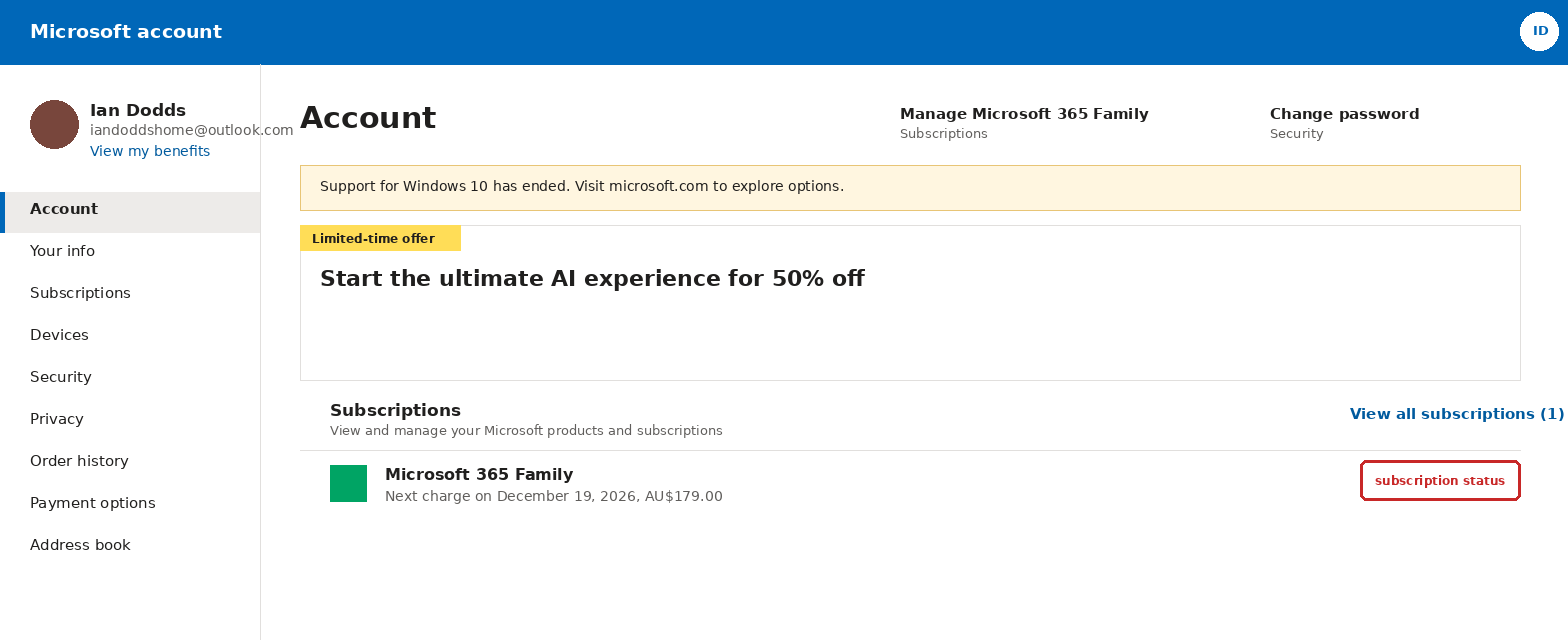
After signing in, the Account home page loads. A summary of any active subscription (name and next charge date) appears under the Subscriptions section. Click View all subscriptions for full details.
Step 4: View subscription status
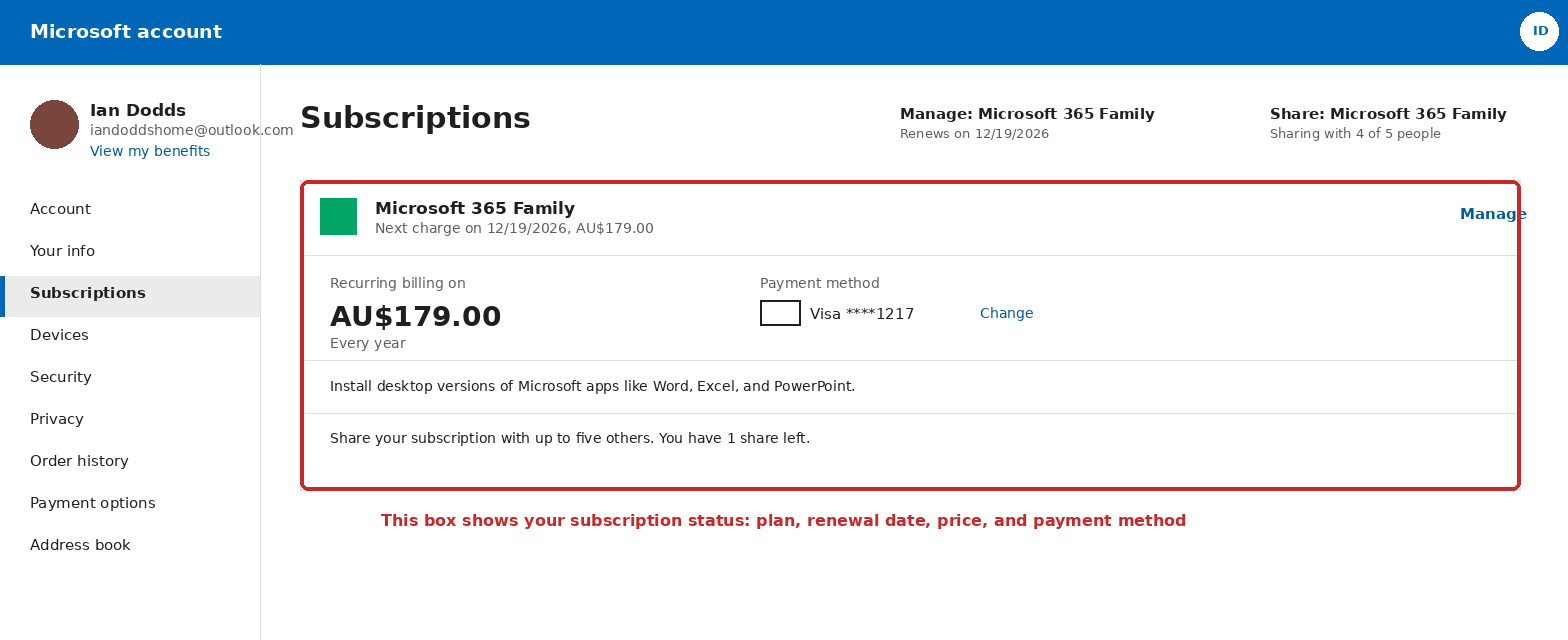
The Subscriptions page (also reachable from the left-hand menu) shows the full status of each subscription: the plan name, renewal date, recurring price and billing frequency, and the payment method on file.
Tips
- Always type account.microsoft.com directly rather than clicking a link from an email, to avoid phishing sites.
- If a subscription shows as “expired” or “past due,” the payment method on file may need updating under Payment options.
- On a shared or public computer, click the account icon in the top-right corner and sign out when finished.